

Connect Instagram and Messenger
Connect your company's Instagram account or Facebook Page so an agent answers direct messages.
When you connect Instagram or Messenger, the agent you choose answers the direct messages your account receives. Both are set up from a Meta app, like WhatsApp.
Connect Instagram
Copy from your Meta app your Instagram account’s access token, the App Secret (in the app’s basic settings), and your Instagram account ID.
Open Channels
In the sidebar, open Channels.
Choose Instagram
On the Instagram card, click Connect.
Fill in the Instagram details
Enter an Integration name and fill in Access token, App Secret, and Business account ID.
Choose the agent
In Agent, choose the agent that will answer.
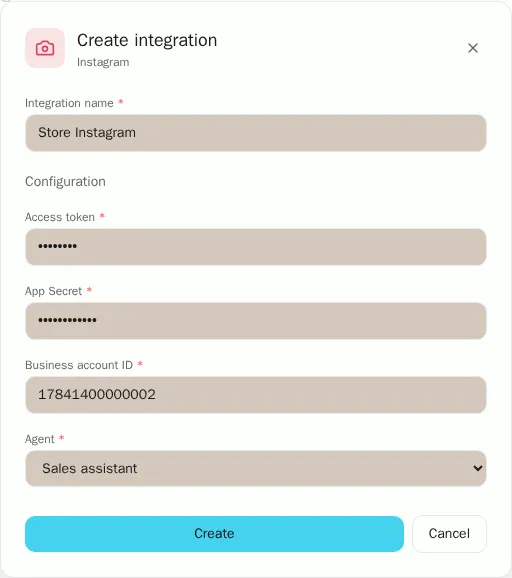
Create the integration
Click Create.
Copy the webhook URL
On the Instagram card, click Connected for the account and copy both values under Webhook URL.
Set up the webhook in Meta
In your Meta app, in the Instagram webhook, paste the URL as the Callback URL and the second value as the Verify token. Then subscribe to the messages field.
Connect Messenger
Copy from your Meta app your Facebook Page access token, the App Secret, and the Page ID.
Choose Messenger
In Channels, on the Messenger card, click Connect.
Fill in the Messenger details
Enter an Integration name and fill in Page access token, App Secret, and Page ID.
Choose the agent
In Agent, choose the agent that will answer.
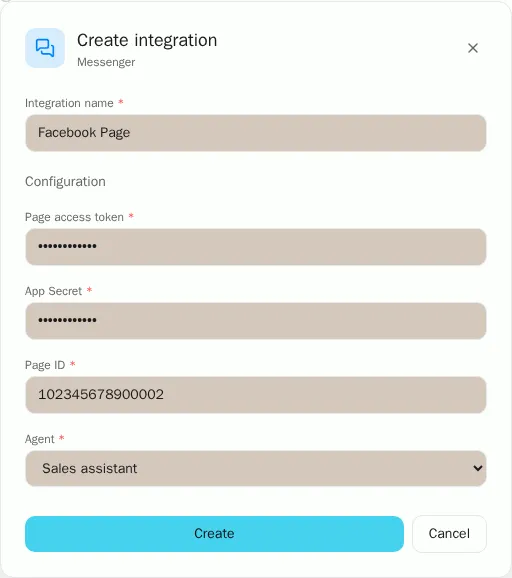
Create the integration
Click Create.
Copy the webhook URL
On the Messenger card, click Connected for the page and copy both values under Webhook URL.
Set up the webhook in Meta
In your Meta app, in the Messenger webhook, paste the URL as the Callback URL and the second value as the Verify token. Then subscribe your Page to the messages field.
Good to know
- Each Instagram account and each Facebook Page counts as one channel account in your plan.
- Replies your team sends from Review cases reach the customer if less than 24 hours have passed since their last message.