

See a task's runs
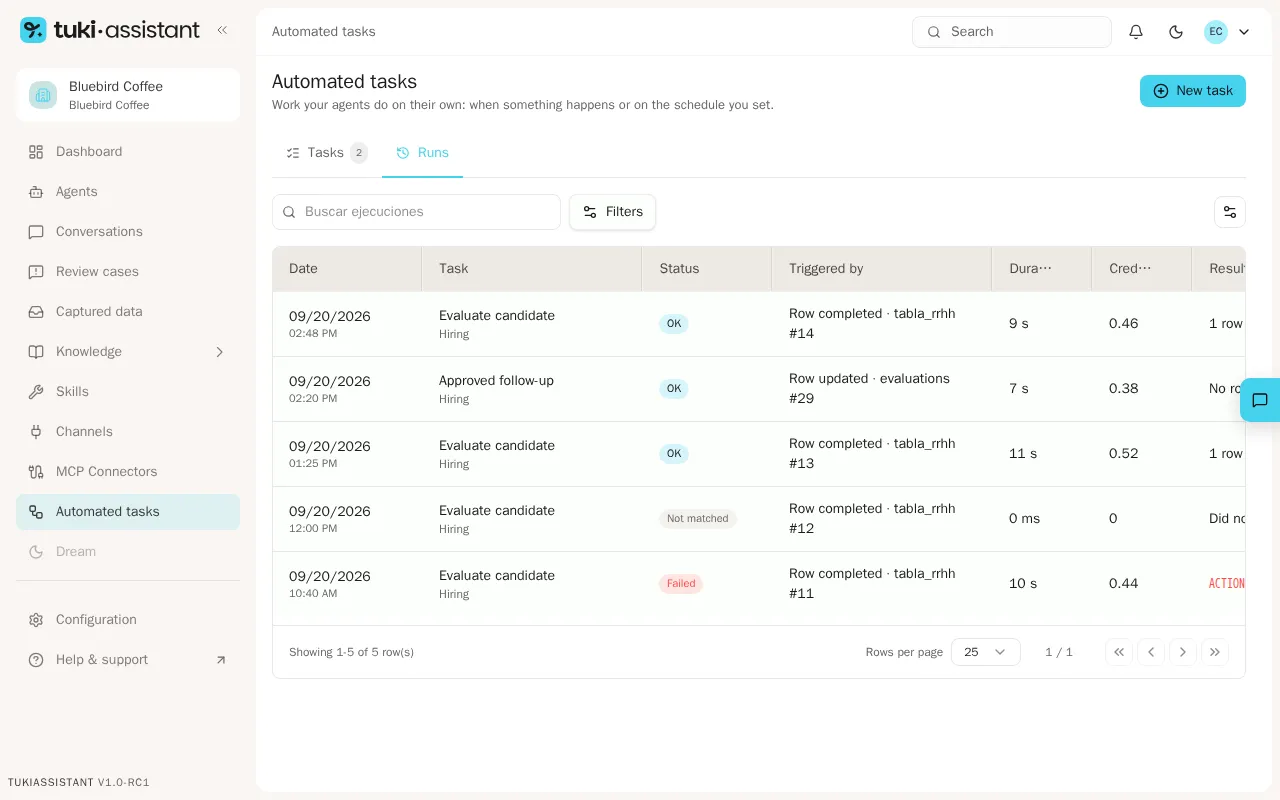
Check when each task ran, what result it delivered, which actions ran, and how many credits it used.
Every time a task is triggered, it leaves a run. You see them in the Runs tab of Automated tasks, or from See runs in the ⋮ menu of each task or in the indicator of its last run.
Open the runs
In Automated tasks, open the Runs tab.
Filter what you need
Click Filters to see only one task or one status. In Actions, choose With failed actions to find the runs that need attention.
Open a run
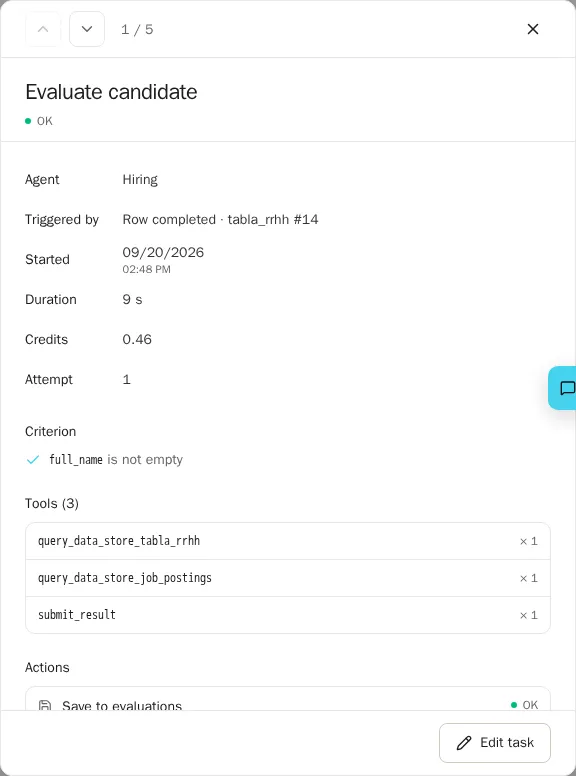
Click a row to see the details: what triggered it, the criterion, the tools it used, the credits, and the outcome of each action. Saved rows appear with their number.
Run statuses
| Status | What it means |
|---|---|
| Queued | Waiting for its turn. Runs start in less than a minute. |
| Running | The task is working. |
| OK | It finished and its actions ran. |
| Failed | It could not finish or an action failed. The details show the reason. |
| Skipped | It did not run: the task was turned off or the daily run limit was reached. |
| Not matched | The criterion was not met. It did not call the AI or use credits. |
In the details, each action shows OK, Failed, or No results (no result met its condition).
Retries
If the AI or a recoverable action fails (for example, a webhook that does not answer), the run retries on its own, with up to three attempts in total. Only the pending actions are retried, without calling the AI again: nothing is charged twice and no rows or notifications are duplicated. If the problem is in the data (for example, a result that does not fit the table), it is not retried: check the instructions or the result format.