

Connect a WhatsApp number
Connect your company's WhatsApp Business number so an agent answers your customers.
When you connect a WhatsApp number, every message a customer sends to it is answered by the agent you choose. Each customer has their own conversation, and the agent remembers what you talked about.
Before you start: your Meta app details
Copy these three values from your Meta app. Meta’s menu names may change.
- Access token: generate a permanent token from a system user in your business portfolio, with the
whatsapp_business_messagingandwhatsapp_business_managementpermissions. The temporary token on the test screen expires in 24 hours. - App Secret: in the app’s basic settings.
- Phone number ID: in the WhatsApp API settings. It is a long number, different from your phone number.
Steps
-
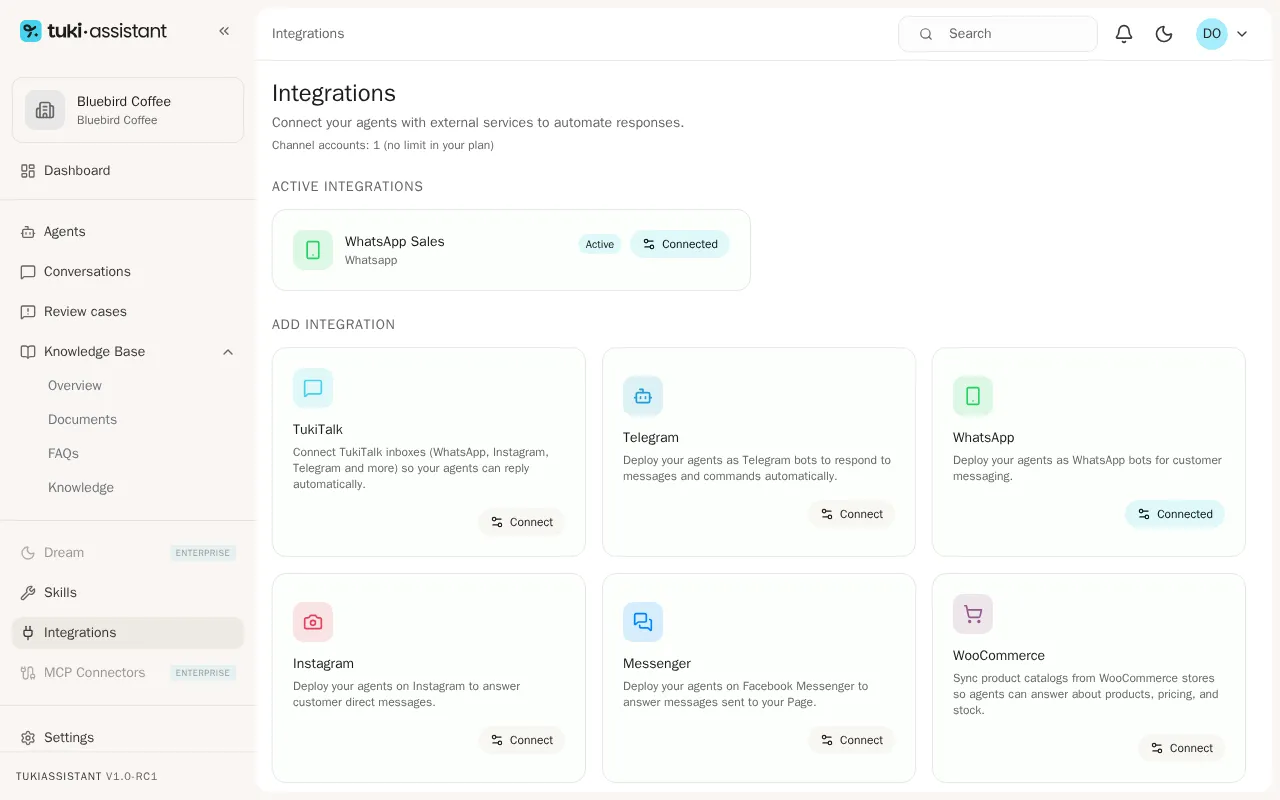
In the sidebar, open Integrations. At the top you see how many channel accounts your organization uses and how many your plan allows.
-
Under Add integration, click WhatsApp.
-
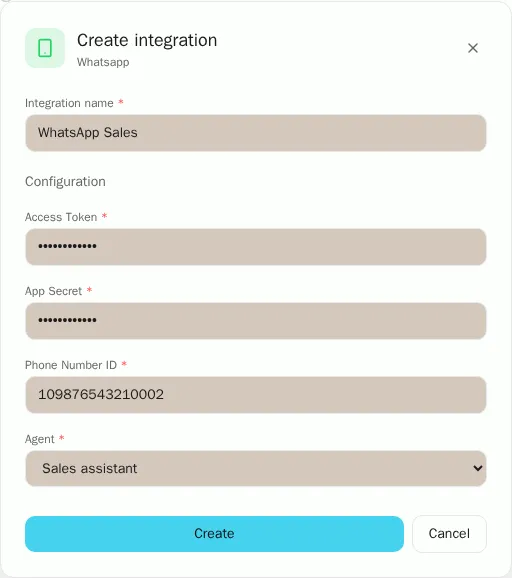
Enter an Integration name that helps you recognize the number.
-
Fill in Access Token, App Secret, and Phone Number ID with your Meta app details.
-
In Agent, choose the agent that will answer on this number.
-
Click Create. The number appears under Active integrations.
-
Click Connected next to the number to open its settings. Under Webhook URL you see two values: the URL and, below it, the verify token.

-
In your Meta app, open the WhatsApp webhook settings. Paste the URL as the Callback URL and the second value as the Verify token, then save.
-
On the same Meta screen, subscribe to the messages field.
-
Send a message to your number from another phone. The agent answers within a few seconds.
Group consecutive messages
Many customers write in several short messages: “hi”, “quick question”, and only then the question. With Group consecutive messages on, the agent waits a few seconds after the last message and answers them all together.
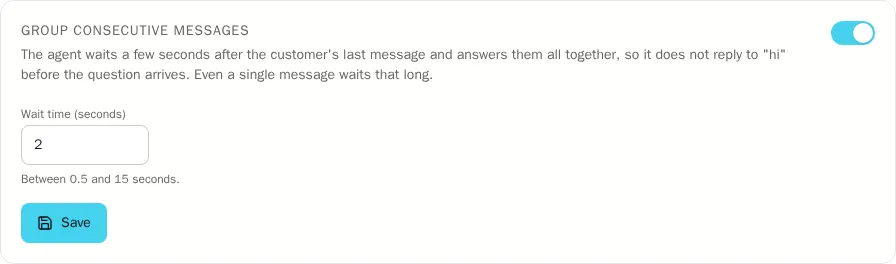
- Change the Wait time (seconds): between 0.5 and 15 seconds. The default is 2.
- If you turn the option off, the agent answers each message as soon as it arrives.
- Click Save to apply the change.
Good to know
- Your plan’s limit: each connected number counts as one channel account of your organization, across all workspaces. When you reach the limit, the WhatsApp card shows Plan limit until you upgrade the plan or deactivate another account.
- One number, one connection: the same number cannot be connected twice, not even in another workspace.
- Your team’s replies: when someone answers a case from Review cases, the reply reaches the customer on WhatsApp if less than 24 hours have passed since their last message. This is a Meta rule.